 listicle
Private Document Management for Teams: 7 Secure Tools
Table of Contents
- Quick Comparison: Private Document Management for Teams
- 1. Inkwell Tools: Browser-Based Privacy for Small Teams
- 2. Google Drive: Real-Time Collaboration With Cloud Convenience
- 3. Microsoft SharePoint Online: Enterprise-Grade Security at Scale
- 4. Dropbox: Simple Syncing for Teams That Want Low Friction
- 5. Zoho WorkDrive: Affordable Security for Small Businesses
- 6. Paperless-ngx: Self-Hosted Data Sovereignty for Technical Teams
- How to Secure Sensitive Team Files: A Practical Checklist
- Frequently Asked Questions
Last Updated: September 17, 2026
Quick Comparison: Private Document Management for Teams
The global document management software market is projected to reach $11.8 billion in 2026, yet only 1 in 4 enterprises currently uses a dedicated system, according to SpeakWise document management statistics. That gap matters because workers spend an average of 2.5 hours every day just searching for documents. This guide from Inkwell Tools compares seven tools built for private document management for teams, from browser-based privacy to self-hosted data sovereignty. Below, we break down what each option actually does well, where it falls short, and who it fits.
Private document management for teams means storing, sharing, and controlling sensitive files so that only authorized people can access them, with encryption and permissions enforced at every step.
| Tool | Starting Price | Free Tier | Best For | Standout Feature |
|---|---|---|---|---|
| Inkwell Tools | Free tier available | Yes | Privacy-conscious small teams | In-browser file processing |
| Google Drive | $6.30/month | Yes | Real-time collaboration | Live co-editing |
| SharePoint Online | Contact for pricing | No | Large enterprises | Compliance controls |
| Dropbox | $15/month | Yes | Low-friction syncing | Smart Sync |
| Zoho WorkDrive | $2.50/user/month | No | Budget small businesses | Role-based access |
| Paperless-ngx | $0 | Yes | Technical teams | Self-hosted hosting |
1. Inkwell Tools: Browser-Based Privacy for Small Teams
Inkwell Tools offers privacy-respecting document management for teams that want to keep files on their device. Core editing runs in the browser, so sensitive documents never leave your machine during conversion and formatting tasks. This model helps remove an entire category of risk that cloud-first tools can only mitigate, not eliminate.
How the privacy model actually works
Most cloud document tools encrypt files at rest and in transit, but the provider holds the keys. That means the provider can technically decrypt your files, to respond to a subpoena, to run server-side search indexing, or to power AI features that scan document contents. In-browser processing inverts that: the file is read and written locally in the browser tab, and only the finished output is saved. There is no server-side copy to subpoena, breach, or misconfigure. For teams operating under a client confidentiality agreement, a litigation hold, or an internal policy that forbids third-party access to source documents, that distinction is the whole point.
Where it fits and where it does not
Inkwell is built for fast, single-purpose tasks rather than sprawling enterprise libraries. For teams handling contracts, meeting notes, and client files, that focus is a feature, not a limitation. It is not the right tool if you need automated approval chains, records retention schedules tied to a legal hold, or a document library that scales to tens of thousands of files with custom metadata schemas. It is also not a fit if your team expects a mobile-first experience or offline sync across devices; browser-based processing assumes a desktop or laptop session.
- Privacy-respecting tools with in-browser processing
- Real free tier on every tool, no trial timers
- Lean, single-purpose utilities with no bundled bloat
- A portion of revenue funds scholarships for BIPOC students
A quick migration note
If your team is moving off a shared network drive or a consumer cloud account, start by inventorying what actually needs to move. Most teams find that 60-70% of stored files are duplicates, outdated drafts, or reference material that never needed to be retained. Classify the remainder by sensitivity before you migrate anything, because the classification determines which tool is appropriate, a client contract and a public marketing PDF do not belong in the same bucket.
2. Google Drive: Real-Time Collaboration With Cloud Convenience
Google Drive remains the default for teams already living in Workspace. Real-time co-editing, AI-assisted search, and granular sharing permissions make it easy to adopt, and the $6.30/month starting price undercuts most dedicated systems. The weakness is workflow depth: it lacks built-in automated approval chains, so document lifecycle control depends on manual discipline.
3. Microsoft SharePoint Online: Enterprise-Grade Security at Scale
SharePoint is the industry standard for large organizations that need centralized document libraries, version control, and deep Microsoft 365 integration. Custom metadata and content types let administrators build structure that scales to thousands of users. The cost is complexity. Administrators face a steep learning curve, and pricing requires a sales conversation rather than a published number.
4. Dropbox: Simple Syncing for Teams That Want Low Friction
Dropbox wins on reliability. Smart Sync frees local disk space, version history recovers accidental deletions, and the admin console handles team management without training. At $15/month it costs more than Drive for fewer document management features, so pick it when sync performance matters more than workflow automation.
5. Zoho WorkDrive: Affordable Security for Small Businesses
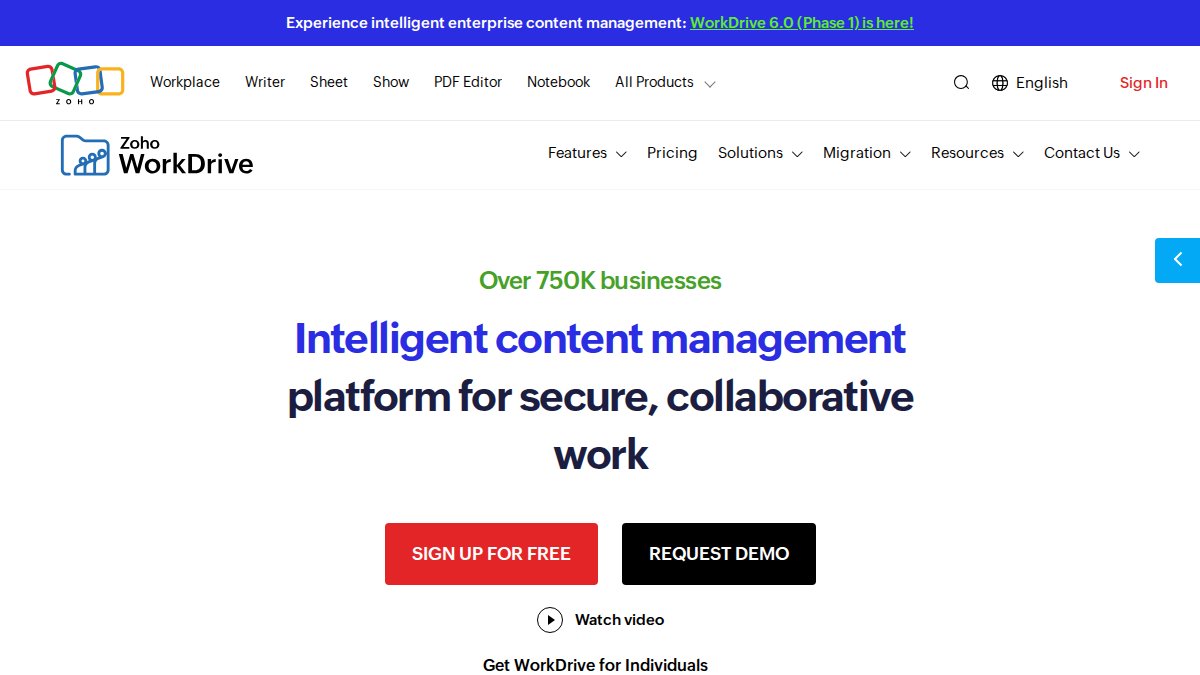
At $2.50 per user per month, Zoho WorkDrive is the cheapest paid option here, and it does not skimp on control. Team folders with role-based access, audit trails, and password-protected external sharing cover the basics of secure document collaboration tools. The catch: integrations work best when you already use other Zoho products.
6. Paperless-ngx: Self-Hosted Data Sovereignty for Technical Teams
Paperless-ngx is free, open source, and self-hosted, which means your documents never touch a vendor's infrastructure. Automatic tagging, full-text search, and OCR turn scanned records into a searchable archive. Setup and maintenance require real technical skill, so this suits engineering teams with spare capacity, not a marketing department.
How to Secure Sensitive Team Files: A Practical Checklist
Securing sensitive team files starts with access control, not software. Businesses that implement a document management system reduce search time by up to 50%, but the security gains come from configuration, according to Kraft Business research on document management for teams. The checklist below is ordered by impact: the first four items prevent the most common breach paths, and the last three close gaps that only surface during an audit or an incident.

Tier 1, Prevent the common breach paths
- Enable encryption at rest and in transit for every stored file. Confirm whether your provider holds the keys (server-side encryption) or whether keys stay with your team (client-side or zero-knowledge). The distinction determines whether a provider breach exposes readable content.
- Assign permission levels by role, not by individual. Individual grants drift as people change roles and leave; role-based access collapses that drift into a single reviewable object.
- Require multi-factor authentication for all team accounts, including contractors. Phishing-resistant factors (passkeys, hardware keys) are stronger than SMS codes, which are vulnerable to SIM-swap attacks.
- Limit external sharing links. Prefer named-recipient links with expiration dates over public "anyone with the link" access, and audit existing links quarterly.
Tier 2, Close the audit and incident gaps
- Turn on audit trails and review them monthly. Log who opened, edited, downloaded, and shared each file, and retain logs long enough to cover your longest investigation window.
- Set a document retention policy with automatic deletion dates. Retaining files you no longer need expands your exposure surface without adding value.
- Classify documents by sensitivity before sharing, and tag them at creation rather than retroactively.
- Test document recovery with a quarterly restore drill. A backup you have never restored is a hypothesis, not a control.
Compliance and data sovereignty
If your team handles health information, financial records, or personal data belonging to residents of certain jurisdictions, the tool you pick is a compliance decision, not just a productivity one.
Best practices for document security also include revoking access the moment a contractor or employee leaves, and reviewing third-party integrations that request read access to your document store. The 2026 trends shaping this space include adaptive security and user-first design, per Document Logistix 2026 document management trends.
Frequently Asked Questions
What features define a truly private document management system for teams?
A private document management system for teams should include encryption at rest, granular access permissions, audit trails, and user authentication. Browser-based processing adds another layer by keeping files on the user's device during editing. Look for systems that let you control who sees what, track every file action, and avoid sending sensitive data to external servers when possible.
How does browser-based processing improve document privacy?
Browser-based processing means core editing happens on your device, not on a remote server. Your file never leaves your computer during tasks like conversion or editing. This reduces exposure to data breaches and third-party access. For teams handling sensitive client documents, this approach limits how many copies of a file exist and where they live.
Is cloud-based document management safe for confidential team files?
Cloud document management is safe when the provider uses encryption at rest and in transit, offers granular permission levels, and maintains audit logs. Check whether the provider supports user authentication methods like SSO and whether they have third-party security audits you can review.
What is the difference between general file storage and private document management?
General file storage focuses on saving and syncing files. Private document management adds access permissions, version control, audit trails, and document retention policies. A dedicated DMS also supports metadata tagging, search indexing, and workflow automation. Many teams rely on basic storage and miss these controls.
How do you balance team accessibility with document privacy?
Use role-based access permissions so each team member sees only the files they need. Set up folder hierarchies that separate sensitive documents from general resources. Enable audit trails to track who accessed what and when. For remote team access, require user authentication like multi-factor login. These steps keep collaboration open while limiting exposure of confidential files.