 comparison
Secure Conversion Alternatives: Beyond SoloConvert
Table of Contents
- Why Secure Conversion Matters for Your Business
- Client-Side File Conversion Tools Explained
- How to Convert Files Without Uploading to a Server
- Top Secure Conversion Alternatives Compared
- Secure Document Handling Best Practices
- Security Risks and How to Avoid Them
- Conclusion
- Frequently Asked Questions
Last Updated: September 1, 2026

Why Secure Conversion Matters for Your Business
More than 90% of business records are now electronic, yet most conversion solutions require uploading files to remote servers where they sit in cloud storage until deletion. For regulated industries handling customer data, intellectual property, or financial records, this is a significant risk. According to Business Research Insights' 2026 Document Management report, more than 80% of enterprises now consider document security among their highest digital transformation priorities.
Secure conversion alternatives operate on a different principle: your files never leave your device. Processing happens locally in your browser using your own computing power. At Inkwell Tools, we've analyzed how teams approach file conversion and found a substantial gap between what companies need and what most tools offer. Free converters often archive files, paid SaaS platforms require infrastructure trust, and desktop software feels outdated. The alternatives covered here represent a different approach: tools that prove security through transparency, not marketing claims.
Below, we'll explain how client-side conversion works, show you how to verify files stay local, and compare the best secure conversion alternatives available.
Client-Side File Conversion Tools Explained
Client-side file conversion means your browser handles conversion directly on your machine rather than sending files to remote servers. Your file never exists on anyone else's infrastructure, no upload, no cloud storage, no waiting for server deletion. According to The Insight Partners' 2025 Secure File Transfer Market analysis, the global secure file transfer market is projected to grow from $2.58 billion in 2025 to $4.43 billion by 2034, driven by demand for solutions that keep data local.

How Browser-Based Processing Protects Your Data
Modern browsers include APIs that let web applications process images, PDFs, and other file types without transmitting them to servers. Conversion happens in your device's RAM, the result stays under your control, and temporary data is discarded when you close the tab.
This eliminates key attack vectors. Cloud-based converters store files on servers you don't own, managed by people you don't know, protected by practices you can't audit. Local processing removes that risk entirely. For compliance, if you're handling HIPAA-regulated healthcare data, GDPR-protected information, or trade secrets, local processing means you're not triggering data residency requirements or cross-border transfer rules.
WebAssembly and Canvas API: The Technical Foundation
Two technologies enable client-side conversion: WebAssembly (Wasm) and the Canvas API.
WebAssembly is a binary instruction format that runs in your browser at near-native speed. Developers compile conversion libraries to Wasm, which executes much faster than JavaScript while running in your browser's sandbox. The Canvas API is a 2D drawing surface for image conversion, resizing, rotating, compressing, and format conversion all happen in memory locally.
Together, these technologies let browser-based converters match desktop software speed while keeping files completely private. The trade-off is that your browser does the work, so conversion speed depends on your device's processor. For most files under 50 MB, performance is comparable to desktop software.
How to Convert Files Without Uploading to a Server
Select a file and open your browser's developer tools (F12 on Windows, Cmd+Option+I on Mac). Navigate to the Network tab to see every request your browser makes. If a tool is truly client-side, you should see no requests uploading your file to a server, only requests for JavaScript and assets. For PDF tools, watch for requests to endpoints like /api/convert or /upload. If those don't appear, conversion is happening locally.
The second verification step is to disconnect from the internet after the tool loads. A truly local converter will work offline. Load the page, disconnect from Wi-Fi, select your file, and try conversion. If it works, processing is happening on your device.
Verifying Local-Only Network Traffic
Network monitoring is the most reliable verification method. Tools like Wireshark (Windows) or Charles Proxy (macOS) capture all network packets. If you monitor your browser while using a conversion tool, you can see exactly what data is transmitted. For truly local conversion, you should see only metadata requests, not file contents.
Test with a file containing sensitive information, a PDF with personally identifiable information, a spreadsheet with financial data, or a document with trade secrets. If the tool's privacy claims are legitimate, you should feel comfortable using it with that file.
Mobile-Specific Secure Conversion Workflows
Mobile devices present different challenges. iOS restricts file access by design; you typically work with files already in email, cloud storage, or document apps. A secure workflow means using a tool that integrates with these sources, selecting a file from Google Drive or iCloud, converting locally in the browser, and saving the result back to cloud storage.
Android offers more flexibility, allowing file selection from device storage directly in a browser. The same local-processing principles apply. For mobile-first workflows, a secure conversion tool that works without app installation is significantly more practical.
Top Secure Conversion Alternatives Compared
| Tool | Processing | Best For | Key Strength |
|---|---|---|---|
| Inkwell Tools | Client-side, browser-based | Privacy-conscious teams | Files never leave your device; real free tier, no trial timers |
| Adobe Acrobat Pro | Server-side with encryption | Enterprises needing comprehensive PDF features | Industry standard with extensive integrations and compliance certifications |
| Foxit PDF Editor | Hybrid (desktop and cloud options) | Teams wanting affordable alternative to Adobe | Lower cost with perpetual licensing and offline access |
| Smallpdf | Cloud-based with encryption and auto-deletion | Small teams needing quick conversions | User-friendly interface, strong privacy practices, cloud storage integration |
Inkwell Tools: Privacy-First Browser-Based Conversion
Inkwell Tools handles file conversion directly in your browser, so files never leave your device. The platform includes PDF editing, image conversion, and batch processing, all processed locally using WebAssembly and Canvas APIs. The technical architecture is transparent, you can verify that file uploads never occur.
The free tier is genuinely free with no trial timers or feature limits that disappear after 14 days. Paid plans unlock additional features. For organizations concerned about vendor lock-in, Inkwell Tools' approach is notable: because processing happens in your browser, there's minimal dependency on vendor infrastructure.
The main limitation is that very large files (100+ MB) may slow your browser noticeably. For typical business documents and PDFs under 50 MB, performance is comparable to desktop software.

Adobe Acrobat Pro: Enterprise-Grade Security
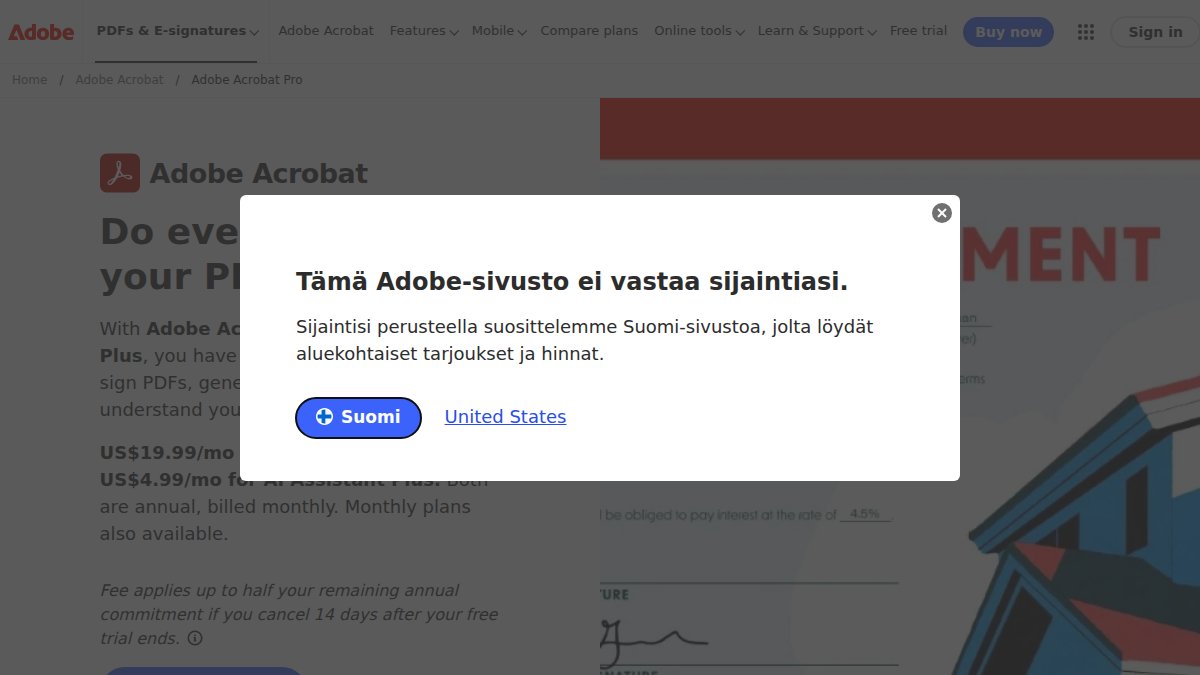
Adobe Acrobat Pro is the industry standard for PDF management, offering extensive editing, e-signature workflows, OCR, and form creation. Security includes AES-256 encryption, redaction tools, and compliance with HIPAA and GDPR.
The primary advantage is breadth, if you need PDF editing, e-signatures, form management, and collaboration in one platform, Adobe handles it comprehensively. The disadvantage is cost ($19.99 per month per user) and that processing happens on Adobe's servers. Files are transmitted and stored in their infrastructure, albeit encrypted. If your requirement is that files never leave your network or device, Adobe doesn't meet that criterion.
Best for: Enterprises with complex PDF workflows and compliance requirements where comprehensive features justify the cost.
Foxit PDF Editor: Cost-Effective Alternative
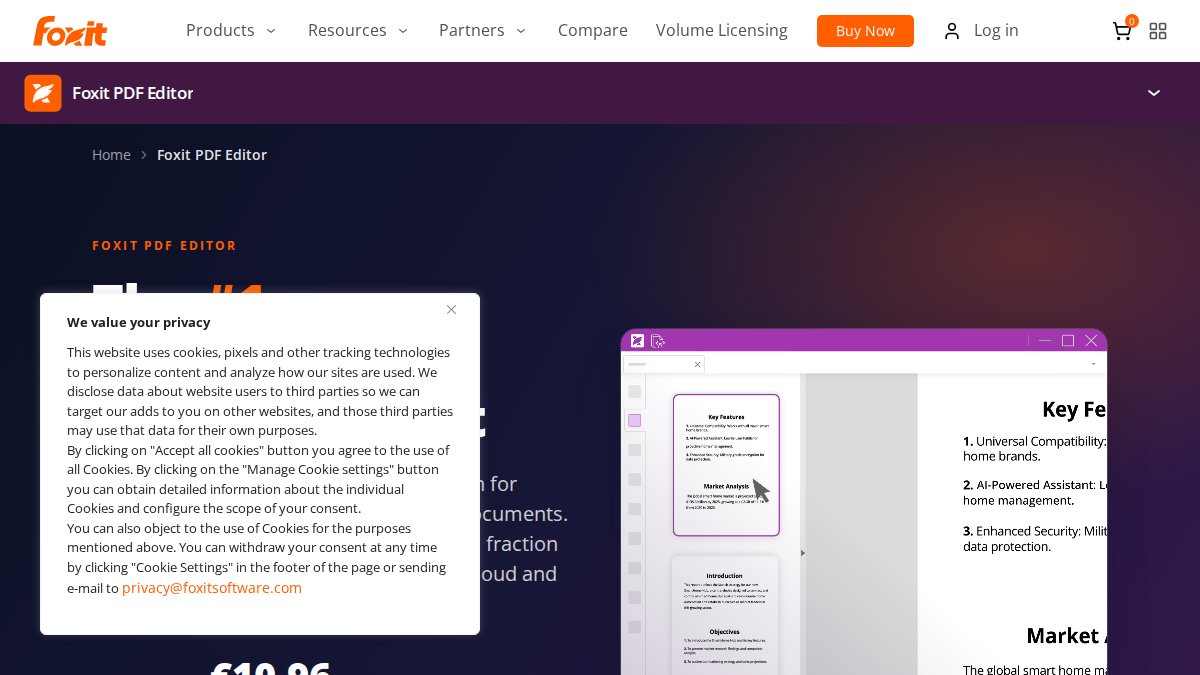
Foxit PDF Editor offers similar features to Adobe at lower cost: $10.99 per month subscription or a perpetual license option. Editing, OCR, e-signature, and form capabilities are included.
Foxit includes AI-powered redaction (Smart Redact) for automatically identifying and removing sensitive information. The tool works on Windows, macOS, web, iOS, and Android.
Like Adobe, Foxit processes files on its servers, not locally. The advantage over Adobe is cost and licensing flexibility; the disadvantage versus client-side alternatives is that files leave your device.
Best for: Cost-conscious teams needing comprehensive PDF features and preferring perpetual licensing.
Smallpdf: Cloud-Based with Privacy Controls
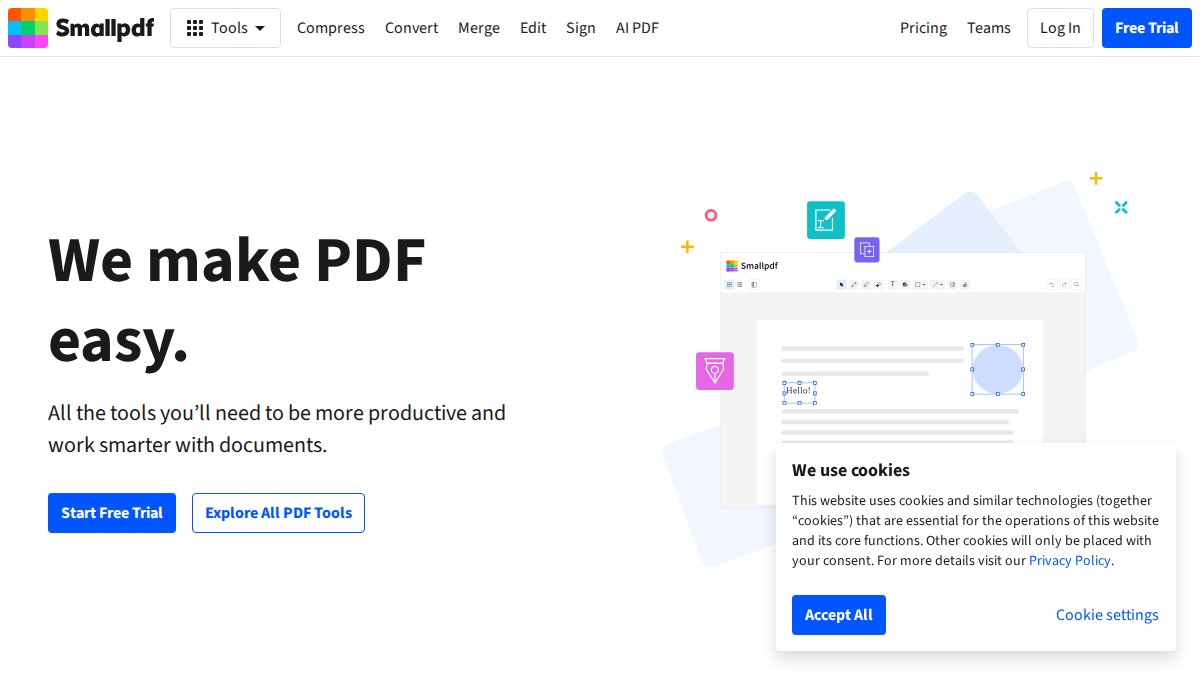
Smallpdf is a suite of 21 online PDF tools accessible through a web interface. It emphasizes privacy: files are encrypted in transit using TLS and automatically deleted from Smallpdf's servers one hour after processing.
The free tier allows two conversions per day, enough for occasional users and genuine evaluation. Paid plans ($10 per month) remove conversion limits and add offline access. Smallpdf integrates with Google Drive, Dropbox, and OneDrive, simplifying workflows for teams using cloud storage.
Files do travel to Smallpdf's servers, even though they're encrypted and deleted after an hour. If your requirement is zero exposure to third-party infrastructure, Smallpdf doesn't qualify. If your requirement is strong privacy practices with reasonable risk management, Smallpdf is solid.
Best for: Small teams and individuals needing frequent conversions who value ease of use and trust Smallpdf's privacy practices.
Secure Document Handling Best Practices
Beyond choosing the right conversion tool, how you handle documents throughout their lifecycle determines your actual security posture.
Metadata Stripping and File Integrity
Metadata is hidden information embedded in files: author name, creation date, edit history, comments, and sometimes location data or device identifiers. When you convert a file, metadata often travels with it. A PDF exported from Word might retain information about who created it. An image might include GPS coordinates.
For sensitive documents, this is a liability. Secure conversion tools should strip metadata by default. Inkwell Tools removes metadata during conversion. Adobe and Foxit offer metadata removal as an option.
File integrity verification ensures files weren't corrupted or modified after conversion. Generate an MD5 or SHA-256 hash of the original file before conversion, then hash the converted file. If hashes match, the file structure is identical.
Access Control and Encryption Standards
Once converted, protect files during storage and sharing through encryption at rest and access controls. Full-disk encryption (BitLocker on Windows, FileVault on Mac) encrypts everything on your device. Application-level encryption protects specific files more granularly.
Access control limits who can access files and what they can do. Role-based access control (RBAC) assigns permissions by user role. Attribute-based access control (ABAC) considers multiple factors like user role, location, device health, and time of day. According to secure file sharing best practices analysis, ABAC is increasingly standard for high-security environments.
Security Risks and How to Avoid Them
Cloud-Based Converter Vulnerabilities
Cloud-based converters introduce several risks. Your file is transmitted to a remote server, exists temporarily in storage, is processed by server-side software, and deleted after a period you don't control. Each step is a potential exposure point.
The primary risk is server compromise. If a converter's infrastructure is compromised, files could be accessed. According to KSKader's data privacy analysis, 60% of organizations now experience privacy harm from inappropriate data use, not breaches. A secondary risk is metadata leakage, converters may log file size, format, timestamp, and user IP address, revealing patterns about your business activity.
The third risk is data residency and regulatory compliance. If subject to GDPR, CCPA, or industry-specific regulations like HIPAA, uploading files to a cloud converter might violate data residency requirements.
File Size Limits and Browser Performance
Client-side conversion has different constraints. Your browser processes files using your device's RAM and processor. Large files consume more resources and slow conversion. Most browser-based converters handle files up to 100-200 MB effectively; beyond that, performance degrades.
This is a genuine limitation of client-side processing, not a security flaw, a trade-off between privacy and device capability. For typical business documents and images, this isn't a problem. Mitigate this by compressing files before conversion: reduce image resolution, remove unnecessary PDF pages, or convert video to lower bitrate.
Conclusion
Secure conversion alternatives exist across a spectrum. Client-side tools like Inkwell Tools offer the strongest privacy guarantee: files never leave your device. Cloud-based tools like Smallpdf provide strong privacy practices with server-side convenience. Enterprise solutions like Adobe and Foxit balance comprehensive features with security certifications.
Your choice depends on your specific requirements. If handling highly sensitive data where privacy is non-negotiable, client-side processing is the only option that truly eliminates exposure. If you need advanced features and can accept server-side processing with encryption, cloud-based or enterprise solutions are more practical.
Explore tools at Inkwell Tools to see how browser-based conversion works with your actual files. The free tier lets you verify that processing happens locally, open developer tools, check the network tab, and confirm that your file data never travels to a server. That transparency is the foundation of trust in secure conversion.
=== FAQ ANSWERS (audit these too, same rules) ===
[1] Q: What are the main security risks of using cloud-based file converters? A: Cloud-based converters transmit your files to remote servers, creating multiple exposure points. Files may be temporarily stored, logged, or accessed by service operators. According to 2026 research, 60% of organizations now experience privacy harm from inappropriate data use rather than breaches alone. Client-side alternatives eliminate this risk by processing files entirely in your browser, ensuring your data never leaves your device. This approach aligns with secure document handling best practices that prioritize data sovereignty and minimized transfer exposure.
[2] Q: How can I verify that a secure conversion tool actually processes files locally? A: Check your browser's developer tools (Network tab) while converting a file. Legitimate client-side converters show minimal or no data transmission to external servers. Look for tools built with WebAssembly or Canvas API, which execute code directly in your browser. Additionally, test with a file containing identifiable metadata, if the tool returns clean metadata, it processed locally. Mobile users can monitor data usage through device settings while converting to confirm no background uploads occur.
[3] Q: What's the difference between browser-based and server-side file conversion? A: Browser-based (client-side) conversion processes files entirely on your device using your computer's resources. Your file never leaves your machine. Server-side conversion uploads your file to a remote server, processes it there, then returns the result. Browser-based offers superior privacy and offline access but may have file size limits based on available RAM. Server-side handles larger files but introduces security and compliance risks. For sensitive documents, client-side file conversion tools are the secure choice. The 2026 market shows strong adoption of privacy-first approaches, with enterprises increasingly requiring local processing for regulated data.
[4] Q: Are free secure conversion tools safe for business documents? A: Safety depends on the tool's architecture, not its price. Free tools built on client-side processing (like Inkwell Tools) are as secure as paid alternatives because they process files locally. Free cloud-based converters present risks, they may monetize data or lack robust encryption. When evaluating free tools, verify they offer real free tiers (not limited trials), transparent security practices, and no data retention policies. The key is understanding how the tool processes your data, not whether it costs money. Real free tiers with no trial timers allow you to test security claims before committing.
[5] Q: What file size limits should I expect with browser-based converters? A: Browser-based converters are limited by available RAM on your device, typically ranging from 100MB to 2GB depending on your system and browser. Desktop browsers generally handle larger files than mobile browsers. If you frequently convert files larger than 500MB, server-side tools may be necessary, though they trade privacy for capacity. Inkwell Tools and similar privacy-first alternatives optimize performance through compression features to maximize file handling within browser constraints. Check tool documentation for specific limits. For enterprise workflows with large files, consider hybrid approaches: use client-side tools for sensitive documents and server-side solutions for large, non-sensitive content.
Frequently Asked Questions
What are the main security risks of using cloud-based file converters?
Cloud-based converters transmit your files to remote servers, creating multiple exposure points. Files may be temporarily stored, logged, or accessed by service operators. According to 2026 research, 60% of organizations now experience privacy harm from inappropriate data use rather than breaches alone. Client-side alternatives eliminate this risk by processing files entirely in your browser, ensuring your data never leaves your device. This approach aligns with secure document handling best practices that prioritize data sovereignty and minimized transfer exposure.
How can I verify that a secure conversion tool actually processes files locally?
Check your browser's developer tools (Network tab) while converting a file. Legitimate client-side converters show minimal or no data transmission to external servers. Look for tools built with WebAssembly or Canvas API, which execute code directly in your browser. Additionally, test with a file containing identifiable metadata, if the tool returns clean metadata, it processed locally. Mobile users can monitor data usage through device settings while converting to confirm no background uploads occur.
What's the difference between browser-based and server-side file conversion?
Browser-based (client-side) conversion processes files entirely on your device using your computer's resources. Your file never leaves your machine. Server-side conversion uploads your file to a remote server, processes it there, then returns the result. Browser-based offers superior privacy and offline access but may have file size limits based on available RAM. Server-side handles larger files but introduces security and compliance risks. For sensitive documents, client-side file conversion tools are the secure choice. The 2026 market shows strong adoption of privacy-first approaches, with enterprises increasingly requiring local processing for regulated data.
Are free secure conversion tools safe for business documents?
Safety depends on the tool's architecture, not its price. Free tools built on client-side processing (like Inkwell Tools) are as secure as paid alternatives because they process files locally. Free cloud-based converters present risks, they may monetize data or lack robust encryption. When evaluating free tools, verify they offer real free tiers (not limited trials), transparent security practices, and no data retention policies. The key is understanding how the tool processes your data, not whether it costs money. Real free tiers with no trial timers allow you to test security claims before committing.
What file size limits should I expect with browser-based converters?
Browser-based converters are limited by available RAM on your device, typically ranging from 100MB to 2GB depending on your system and browser. Desktop browsers generally handle larger files than mobile browsers. If you frequently convert files larger than 500MB, server-side tools may be necessary, though they trade privacy for capacity. Inkwell Tools and similar privacy-first alternatives optimize performance through compression features to maximize file handling within browser constraints. Check tool documentation for specific limits. For enterprise workflows with large files, consider hybrid approaches: use client-side tools for sensitive documents and server-side solutions for large, non-sensitive content.
This article was written using GrandRanker