
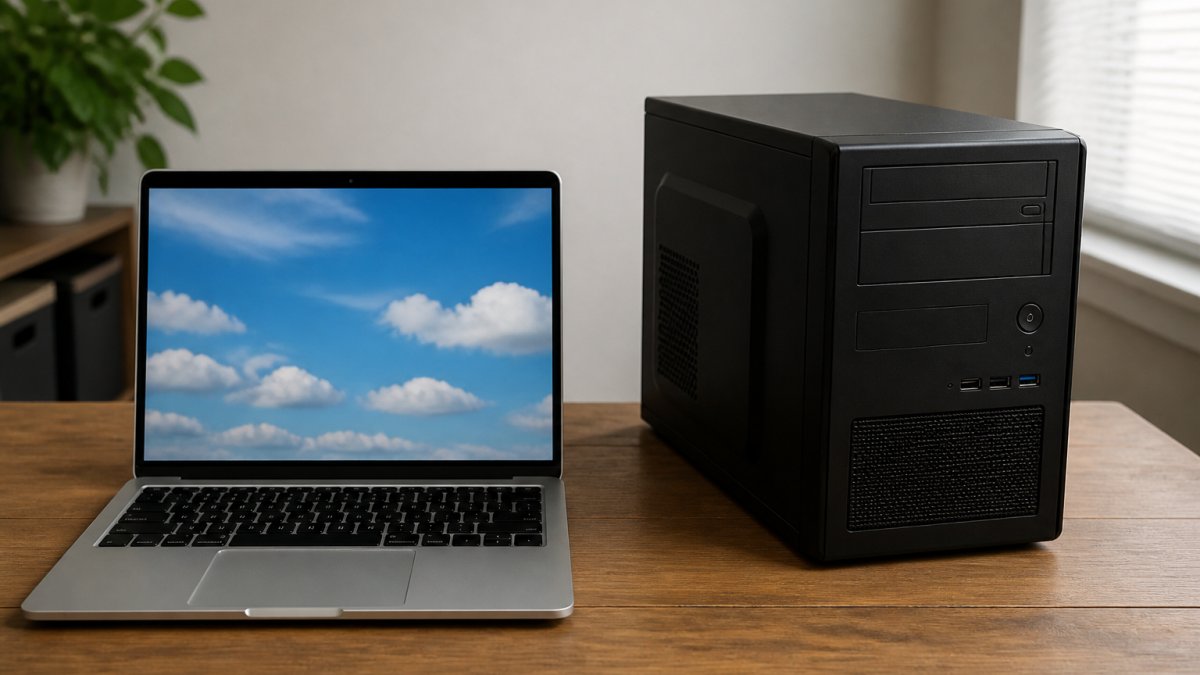
 comparison
Web Utilities vs Desktop Software: Security Comparison
Table of Contents
- Web Utilities vs Desktop Software: Core Differences
- Web App Security vs Desktop App Security: Where Each Approach Stands
- Client-Side File Processing: Privacy and Control
- Security Risks: What Actually Matters
- Secure Document Management Best Practices
- Online PDF Editor Privacy: What You Need to Verify
- When to Choose Web Utilities, When to Choose Desktop Software
- Verification Checklist: How to Confirm Security Claims
- Frequently Asked Questions
Last Updated: October 8, 2026
Web Utilities vs Desktop Software: Core Differences
When you handle sensitive files, the choice in web utilities vs desktop software shapes your security posture, privacy, and workflow. They represent fundamentally different approaches to how your data is processed, stored, and protected.
Web utilities are browser-based tools that run directly in your browser window. They process information client-side, meaning the core work happens on your device rather than on distant servers. Desktop software installs on your machine and operates independently of any internet connection, with its own security architecture and system integration.
The distinction determines where your data lives, who can access it, and what happens when things go wrong.
How Web Utilities Work
Web utilities load in your browser and execute code locally. When you upload a file, processing typically happens in your browser's memory, not on a remote server, the critical difference from cloud-based tools that send your data elsewhere.
The browser acts as a sandbox, isolating the web utility from your system files, network, and other applications. If designed correctly, your data never leaves your device: you upload a PDF, the browser processes it, you download the result, and the server sees only that you made a request.
How Desktop Software Works
Desktop software installs directly on your machine and integrates with your operating system, with direct access to your file system, processor, and system resources. Updates happen locally, and most processing occurs without internet dependency.
The trade-off is visibility. Desktop software runs with whatever permissions you grant it. It can read files across your system, modify settings, and persist data in ways web utilities cannot. It's more powerful precisely because it's less restricted.
Web App Security vs Desktop App Security: Where Each Approach Stands
Each approach's security profile depends on what threats matter most to you. Neither is universally "more secure", they defend against different attack vectors and introduce different risks.

Web utilities excel at preventing data exfiltration because your data never leaves your device. If built correctly, a compromised server cannot steal your files, they were never sent there.
Desktop software is vulnerable to local threats: malware can read files, intercept data, and monitor the application.
The real difference is threat model. Web utilities protect against server compromise and network interception; desktop software protects against remote attacks but assumes your local system is trustworthy.
Client-Side File Processing: Privacy and Control
Client-side processing means the browser handles your file without sending it to a server, the core privacy claim behind most web utilities.
With true client-side processing, your file stays in your browser's memory. The server receives only metadata, that you made a request, perhaps file size or format, never the contents.
This assumes the tool is built correctly; a poorly designed web utility might send your data to the server anyway.
Desktop software gives you even more control: the file never leaves your machine, with no server, transmission, or third-party involvement, complete local processing and no hidden data flows.
The downside is performance and features: complex operations run slower in a browser than on a dedicated server, and advanced AI, batch processing, or real-time collaboration are harder to implement locally.
Security Risks: What Actually Matters
Both approaches carry real risks. Understanding them helps you choose the right tool.
Risks Specific to Web Utilities
Browser vulnerabilities expose data in memory. An unpatched browser flaw could let an attacker access data inside the web utility, rare but possible.
Man-in-the-middle attacks intercept data in transit. Over an unencrypted connection (HTTP instead of HTTPS), someone on your network could see your data (man-in-the-middle attack (MitM) - Glossary). Always use HTTPS, and verify the tool requires it.
Malicious servers are the biggest risk. If the tool's server is compromised, an attacker gains metadata about your usage, your IP address, and potentially code running in your browser.
Phishing and social engineering remain the most common attack vector. A fake version of a web utility could steal your credentials or malicious files. Always access tools through verified URLs and bookmarks.
Risks Specific to Desktop Software
Local malware is the primary threat. If your system is compromised, malware can access files, monitor the application, and steal data, desktop software offers no protection against that.
Supply chain attacks hit desktop software harder: a compromised vendor build system installs malicious code on thousands of machines. Web utilities distribute code through the browser, making large-scale compromise harder, though not impossible.
Unpatched vulnerabilities accumulate in desktop software; without regular updates, known flaws remain exploitable. Web utilities update server-side automatically, so users always get the latest version.
System resource access is both a feature and a risk. Desktop software can reach your file system, clipboard, and settings, power that enables features but creates attack surface if the application is compromised.
Secure Document Management Best Practices
Regardless of which tool you choose, these practices apply to any sensitive file handling.
Use encryption for files at rest. If you store documents locally, encrypt the folder or use encrypted containers. If you use cloud storage, enable encryption before uploading.
Verify the tool's security claims. Don't take marketing language at face value. Look for:
- Published security documentation or whitepapers
- Third-party security audits or certifications
- Clear explanations of how data is processed and stored
- Transparency about what the server can and cannot see
Limit access and permissions. Grant tools only the permissions they need. A document converter doesn't need access to your calendar, contacts, or system settings.
Use strong authentication. Enable two-factor authentication on any account associated with the tool. For desktop software, use a strong local password and enable OS-level security features.
Monitor network activity. Use browser developer tools or network monitoring software to see what data the web utility sends.
Keep systems updated. Update your browser, operating system, and desktop applications regularly. Security patches close vulnerabilities that attackers actively exploit.
Online PDF Editor Privacy: What You Need to Verify
PDF editors are a common use case for both web utilities and desktop software. The privacy implications differ significantly.
A web-based PDF editor that processes files client-side never sends your document to the server.
But verify this claim before trusting it. Check the tool's network traffic using browser developer tools. Open the Network tab, upload a PDF, and watch what gets sent.
Desktop PDF editors store everything locally. Your files never leave your machine. This offers complete control and privacy, but you're responsible for securing the application and your system.
The trade-off is features. Web-based editors often have fewer capabilities than desktop alternatives because browser technology has limits.
For sensitive documents, choose a tool where you can verify the processing method.
When to Choose Web Utilities, When to Choose Desktop Software
The right choice depends on your specific situation, not on which approach is theoretically "better."
Use Web Utilities When
You need cross-device access. Web utilities work on any device with a browser, your laptop, tablet, phone, or borrowed computer. No installation required.
Privacy and data minimization matter most.
You want automatic updates. Web utilities update server-side, so you always have the latest version with the newest security patches. No manual updates, no delayed patching.
You prefer no installation overhead. Web utilities require nothing but a browser. No installation, no system integration, no cleanup if you stop using the tool.
Your files are temporary. If you're processing a file once and discarding it, a web utility's ephemeral processing is ideal. The file never persists anywhere.
Use Desktop Software When
You need offline access. Desktop software works without internet. Web utilities require a connection, even if processing is client-side.
Performance is critical. Desktop software runs faster because it uses your full system resources without browser overhead. For large files or complex operations, desktop wins.
You need deep system integration. Desktop software can integrate with your file system, clipboard, and other applications. Web utilities are isolated by design.
You're processing sensitive data repeatedly. If you work with the same confidential files regularly, desktop software's local-only processing eliminates network risk entirely.
You need advanced features. Desktop software can offer capabilities that browser technology simply cannot support.
Verification Checklist: How to Confirm Security Claims
Before trusting any tool with sensitive data, work through this checklist.
| Verification Step | What to Check | How to Verify |
|---|---|---|
| Data Processing | Where does the file get processed? | Use browser DevTools (Network tab) to monitor data flow; check documentation for architecture details |
| Encryption in Transit | Is data encrypted when sent over the network? | Verify HTTPS is required; check certificate validity in browser address bar |
| Server Access | Can the server see your file contents? | Review privacy policy; test with DevTools; look for published security audits |
| Authentication | Is access controlled and verified? | Check for two-factor authentication options; review account security settings |
| Update Frequency | How often are security patches released? | Check the tool's changelog or security advisories; verify automatic updates are enabled |
| Third-Party Access | Who else can see your data? | Review privacy policy for third-party integrations; check what analytics or tracking is enabled |
| Data Retention | How long is your data kept? | Review privacy policy; check if files are deleted after processing; verify no backups are retained |
| Offline Capability | Can you use the tool without internet? | Test functionality without network access; check documentation for offline features |
Start with the vendor's documentation. Read their privacy policy and security documentation carefully. Look for specific technical details, vague language is a red flag.
Test the tool yourself. Use browser developer tools to monitor network traffic.
Look for third-party verification. Security audits from independent firms carry more weight than vendor claims.
Ask about data retention. Even if a tool processes files client-side, does it keep logs of what you uploaded? Does it retain metadata?
For enterprise use, demand compliance documentation.
The security comparison between web utilities and desktop software isn't about finding a universal winner.
When you need both privacy and cross-device access, web utilities with client-side processing offer the best balance.
Frequently Asked Questions
Is it more secure to use a web utility or desktop software?
Neither is inherently more secure, it depends on threat model, data sensitivity, and implementation. Web utilities that process files locally in your browser can be as secure as desktop software, but they rely on browser sandboxing. Desktop software runs with direct system access, which can be stronger for encryption but also exposes you to installation and update vulnerabilities. For sensitive documents, verify that the web utility provider has third-party security audits and confirm client-side processing before trusting either approach.
How can I tell whether a web tool processes files locally using client-side file processing?
Check the vendor's documentation for explicit claims about client-side processing. Open your browser's developer tools (F12) and monitor the Network tab while uploading and editing a file. If no data is sent to external servers, the tool is processing locally. Look for mentions of IndexedDB, WebAssembly, or Web Workers in technical docs, these indicate browser-based execution. Ask the vendor directly for evidence: architecture diagrams, security audit reports, or a description of which operations happen in your browser versus on their servers.
Are browser-based tools safe for sensitive documents?
Browser-based tools can be safe for sensitive documents if they use client-side processing, encryption, and proper access controls. The browser sandbox isolates the tool from your system and other applications. However, safety depends on the vendor's implementation: Do they encrypt data at rest and in transit? Do they delete files from memory after use? Have they undergone security audits? For highly sensitive data (financial records, trade secrets), confirm offline capability and local-first design before relying on any web utility, regardless of vendor claims.
When should I use desktop software instead of an online tool?
Choose desktop software when you need offline access, direct system integration (file associations, plugins), or maximum control over where data is stored. Desktop software is also better for high-performance tasks that benefit from direct hardware access. Use web utilities when you need cross-device access, automatic updates without user intervention, or lightweight tools that don't require installation. For enterprise deployments with strict compliance requirements (HIPAA, FedRAMP, SOC 2), desktop software may offer clearer audit trails and control, though some web utilities now meet these standards.
Does a web utility upload my files to a server?
Not necessarily. If a web utility uses client-side processing, files remain on your device and in your browser's memory, they never reach the vendor's servers. However, many web tools do upload files for processing, storage, or backup. Always check the privacy policy and architecture documentation. Look for explicit statements about local-first processing, offline capability, or data deletion timelines. When in doubt, contact the vendor directly and ask for clarification on which operations happen in your browser versus on their infrastructure.