 blog
blog
Best Free Tools for Local Document Redaction
Table of Contents
- Why Local Document Redaction Beats Cloud Uploads
- Quick Comparison: Free Local Redaction Tools
- Inkwell Tools: Browser-Based Redaction With a Real Free Tier
- How to Redact a PDF Locally, Step by Step
- Secure Redaction Best Practices
- Local vs Cloud Document Redaction: What Changes
- Scanned Documents, OCR, and Batch Workflows
- Conclusion
- Frequently Asked Questions
Last Updated: October 6, 2026
Why Local Document Redaction Beats Cloud Uploads
The best free tools for local document redaction keep your file on your own machine, removing the biggest risk in the process: a copy of your sensitive document on someone else's server, where it can be logged, cached, or exposed in a breach. At Inkwell Tools, we build our utilities around that principle. Below, we'll show you how to pick a tool, verify it, and redact a PDF without your file ever leaving your device.
What the Browser Actually Processes On-Device
Local document redaction is the practice of removing or permanently obscuring sensitive text inside a file using software that runs entirely on your own computer, with no upload to a remote server. In a browser-based tool, JavaScript reads the file from your disk, parses its bytes in memory, and writes a new file to your downloads folder.
That distinction matters: when a tool processes locally, the network tab stays quiet during the operation. When it uploads, you see a request carrying your file.
How to Verify a Tool Never Uploads Your File
You do not have to take a vendor's word for it. Verification takes about two minutes:
- Open the tool, then open your browser's developer tools and switch to the Network tab
- Load a test PDF and run a redaction
- Watch for any request whose size roughly matches your file, or any call to an
/uploador/apiendpoint - Disconnect from the internet entirely, then repeat the redaction. If it still works, processing is local
The offline test is the strongest signal: a tool that redacts with no network connection cannot be sending your file anywhere.
Quick Comparison: Free Local Redaction Tools
Most results for this keyword drift into OCR utilities and general PDF readers.
| Tool | Platform | Free Tier Limits | Permanent Redaction? | Batch? | OCR for Scans? |
|---|---|---|---|---|---|
| LibreOffice Draw | Windows, macOS, Linux | Fully free, open source | Yes, export flattens edits | No | No |
| PDF24 Creator | Windows | Free, no account | Yes, "Redact" tool removes text | Yes (limited) | Yes |
| GIMP | Windows, macOS, Linux | Fully free, open source | Only after flatten/export to image | No | No |
| Stirling PDF (self-hosted) | Any OS via Docker or JAR | Free, open source | Yes, true redaction mode | Yes | Yes |
| Inkwell Tools | Any modern browser | Real free tier, no timer | Yes, browser-side removal | No | No |
LibreOffice Draw is the quiet workhorse.
PDF24 Creator is Windows-only but the most feature-complete free desktop option.
Stirling PDF is the strongest free option for anyone comfortable running a local server.
Inkwell Tools is the lowest-friction pick: no install, no account, and redaction runs in the browser tab on your device.
Platform and File-Type Compatibility at a Glance
| Format | LibreOffice Draw | PDF24 | GIMP | Stirling PDF | Inkwell Tools |
|---|---|---|---|---|---|
| PDF (digital) | Yes | Yes | Yes | Yes | Yes |
| PDF (scanned) | Manual only | Yes (OCR) | Yes (as image) | Yes (OCR) | Manual only |
| DOCX | Yes | No | No | No | No |
| Images (JPG/PNG) | Yes | Yes | Yes | Yes | Yes |
| Windows | Yes | Yes | Yes | Yes | Yes |
| macOS | Yes | No | Yes | Yes | Yes |
| Linux | Yes | No | Yes | Yes | Yes |
Two rules fall out of this table. If your document is a scan, only PDF24 and Stirling PDF recognize the text for you, otherwise you redact pixels by hand. If you need batch processing, skip browser tools and use PDF24 or Stirling PDF.
LibreOffice Draw download page Stirling PDF project repository
Inkwell Tools: Browser-Based Redaction With a Real Free Tier
Inkwell Tools processes core editing in your browser. Your file stays on your device, with no trial timer counting down.
The free tier is genuine rather than a demo: real functionality without a countdown or watermark gate, and you upgrade only when a job demands more.
It fits the common case: a contract, medical record, or client file with a few names and account numbers to black out, done without installing anything.
Pros and Cons
Pros:
- Core editing runs in the browser, so files stay on your device
- Real free tier with no trial timers
- Single-purpose tools with no bloated bundles
Cons:
- Browser-based work is less convenient for very large batch jobs
- Fewer advanced automation options than a full desktop editor
How to Redact a PDF Locally, Step by Step
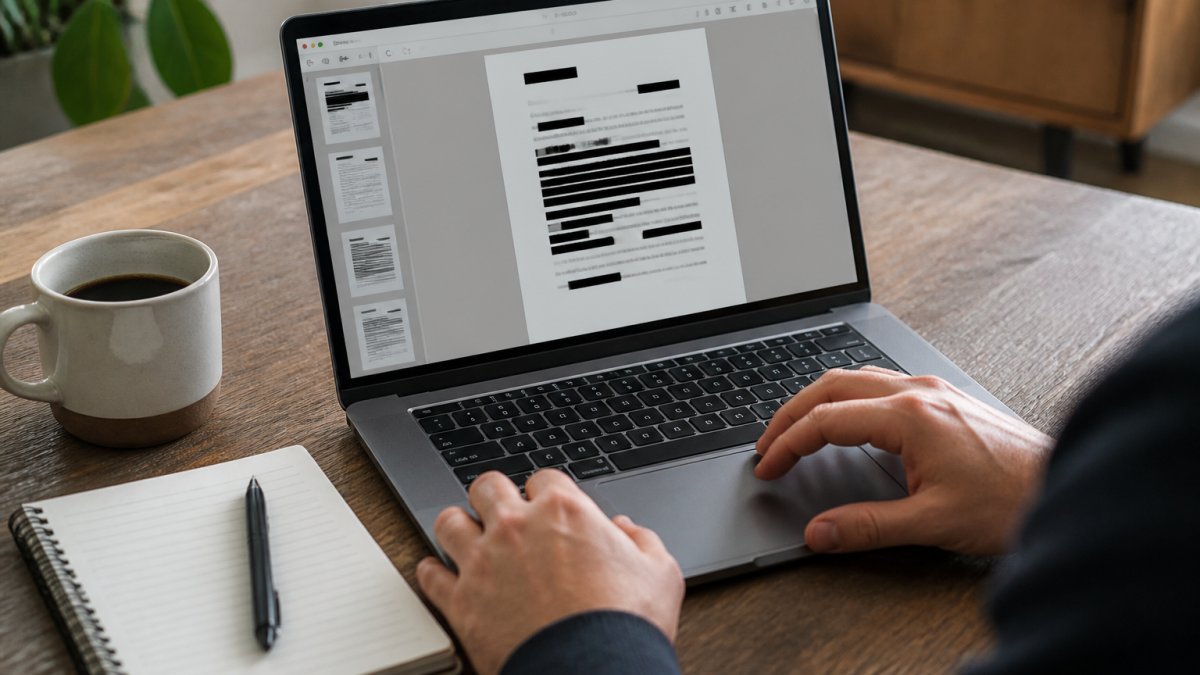
- Open the tool in your browser and confirm it works offline before loading anything sensitive.
- Load your PDF from your local drive. Watch the Network tab for any upload request.
- Find every instance of the sensitive text with keyword search, not by eye, names repeat in headers, footers, and metadata.
- Draw the redaction boxes over each item, leaving no sliver of a character visible.
- Apply permanent redaction, not an annotation layer. The text must be removed, not just covered.
- Save to a new file and open it in a separate reader to confirm the text is gone.
- Test with copy and paste. If the redacted text copies out, the redaction failed.
Step seven is the one people skip, and it is the one that catches the most mistakes.
Secure Redaction Best Practices
The most common failure in document redaction is cosmetic: a black rectangle over text that still sits underneath, fully selectable and searchable. Proper secure redaction best practices start with removing the underlying content, not hiding it.
Why Black Boxes Fail and What Permanent Redaction Requires
A drawn rectangle is an annotation. The original text remains in the content stream, and anyone who opens the PDF in an editor or runs a text extraction can pull it back out. Permanent redaction requires deleting the underlying characters, then rebuilding the page so no trace survives.
Three checks confirm a redaction actually held:
- Select the redacted region and try to copy it
- Run a keyword search for the removed term
- Inspect the file's metadata and hidden layers, which often retain author names and original titles
Local vs Cloud Document Redaction: What Changes
The core difference between local and cloud document redaction comes down to custody. With local processing, your file never leaves your device, so there is no server copy to breach, subpoena, or misconfigure.
Local wins on privacy and works offline. Cloud wins on collaboration, shared audit trails, and jobs too heavy for a browser tab. For regulated material, the local route removes a whole category of risk rather than managing it.
Scanned Documents, OCR, and Batch Workflows
Scanned PDFs behave differently, and this is where many free tools quietly fail. A scan is an image, there is no text layer to remove, only pixels. That changes how you redact and how you verify.
Why OCR Is a Prerequisite, Not a Guarantee
To find sensitive text in a scan, the tool must first run optical character recognition to build a searchable text layer. OCR accuracy depends on resolution (300 DPI is the practical floor), skew, contrast, and font.
The safe workflow for scanned documents is therefore two-pass:
- Run OCR to generate a searchable layer, then search for every sensitive term.
- Redact the underlying image pixels, not just the OCR text layer, so the visible characters are destroyed.
- Flatten the page so no separate image or text layer remains recoverable.
- Verify by eye, page by page, against your original list of sensitive terms.
Step four is non-negotiable for scans. Keyword search alone misses OCR errors, and a missed name in a medical record or court filing is exactly the failure redaction is meant to prevent.
Verifying That Image Redaction Actually Held
After redacting a scanned page, run these checks before you send the file anywhere:
- Zoom to 400% on each redacted region and confirm no character edges peek out from under the box.
- Try to select and copy the redacted area. If any text copies out, the OCR layer survived and must be removed.
- Run a keyword search for each sensitive term. A hit means the text layer is still present.
- Inspect the file with a PDF structure viewer (or a tool that lists embedded objects) to confirm no original image or hidden text layer remains alongside the redacted one.
A common pattern: a tool redacts the visible image but leaves the OCR text layer intact. The page looks clean, but a copy-paste or text extraction pulls the name back out. Always test with copy-paste, not just your eyes.
Batch Redaction and Repeatable Workflows
Batch work raises separate problems. Browser tools handle one document at a time comfortably; larger sets are faster in an installed editor like PDF24 or a self-hosted Stirling PDF instance. Pattern-based detection, matching account numbers, Social Security number formats, or emails with a regular expression, speeds up review but never replaces a human pass. False negatives are silent, and a missed identifier in 500 files is far worse than a slow manual review of 50.
For repeatable workflows, build a fixed checklist and apply it identically to every file:
- Same search-term list, updated as new identifiers appear.
- Same OCR settings (300 DPI minimum) for every scan.
- Same redaction method, pixels removed, page flattened.
- Same verification steps, copy-paste test, keyword search, metadata scrub.
- Same output naming convention so you can prove which version was redacted.
Conclusion
Redacting sensitive files without exposing them to a third party is solvable without expensive software. The hard part is discipline: verifying a tool processes locally, confirming redactions are permanent rather than cosmetic, and checking scanned documents by eye.
That is the approach at Inkwell Tools. Our browser-based utilities process core editing on your device, every tool has a real free tier with no trial timers, and each stays single-purpose so you never pay for features you will not touch.
Frequently Asked Questions
What is the difference between redaction and blacking out text?
Blacking out usually means drawing a black rectangle over text, which leaves the underlying characters in the file. Anyone who copies the text or runs extraction can recover what you hid. True redaction removes the content from the file itself, so the characters are gone rather than covered. When you redact a PDF properly, the sensitive information no longer exists in the document layer, the metadata, or the searchable text. Always verify by running a keyword search for the removed terms after saving.
Are free online redaction tools safe for sensitive documents?
It depends entirely on where the processing happens. Tools that upload your file to a server create a copy outside your control, and that copy may sit in logs, backups, or temporary storage. Browser-based tools that run on-device never send the file anywhere, so there is nothing to leak. Before trusting any free tool, open your browser's developer tools, watch the network tab during a redaction, and confirm no file data leaves your machine. That single check separates genuinely local tools from cloud tools with privacy-friendly marketing.
How can I redact a PDF locally without uploading it to the cloud?
Open the PDF in a tool that processes files in your browser, or use desktop software installed on your machine. Select the text or image regions to remove, apply the redaction, then save a new copy rather than overwriting the original. After saving, reopen the file and search for the terms you removed. If the search returns nothing and the visible content is gone, the redaction held. For scanned documents, run OCR first so the text layer exists, then redact that layer as well as the image.
What are the risks of using non-local redaction software?
The main risk is that your document leaves your device. A cloud tool receives the full file, including everything you did not intend to redact, and you cannot confirm when that copy is deleted. Metadata often survives redaction too, exposing author names, file paths, and revision history. Non-local tools also depend on a network connection, so you cannot redact on a locked-down machine or an air-gapped system. Local processing removes the upload step entirely, which is why privacy-conscious teams standardize on it.