 comparison
Secure Media Conversion Tools for Mac: 2026 Review
Table of Contents
- What Makes a Media Converter Secure for Mac
- Free Video Converter for Mac: What You Actually Get
- Offline Media Converter for Mac: Processing Without Uploads
- Mac Video Converter Privacy: How to Verify Claims
- Video Converter File Format Support: What Matters
- Secure Media Conversion Tools Compared
- Which Tool Should You Choose
- Frequently Asked Questions
Last Updated: October 10, 2026
What Makes a Media Converter Secure for Mac
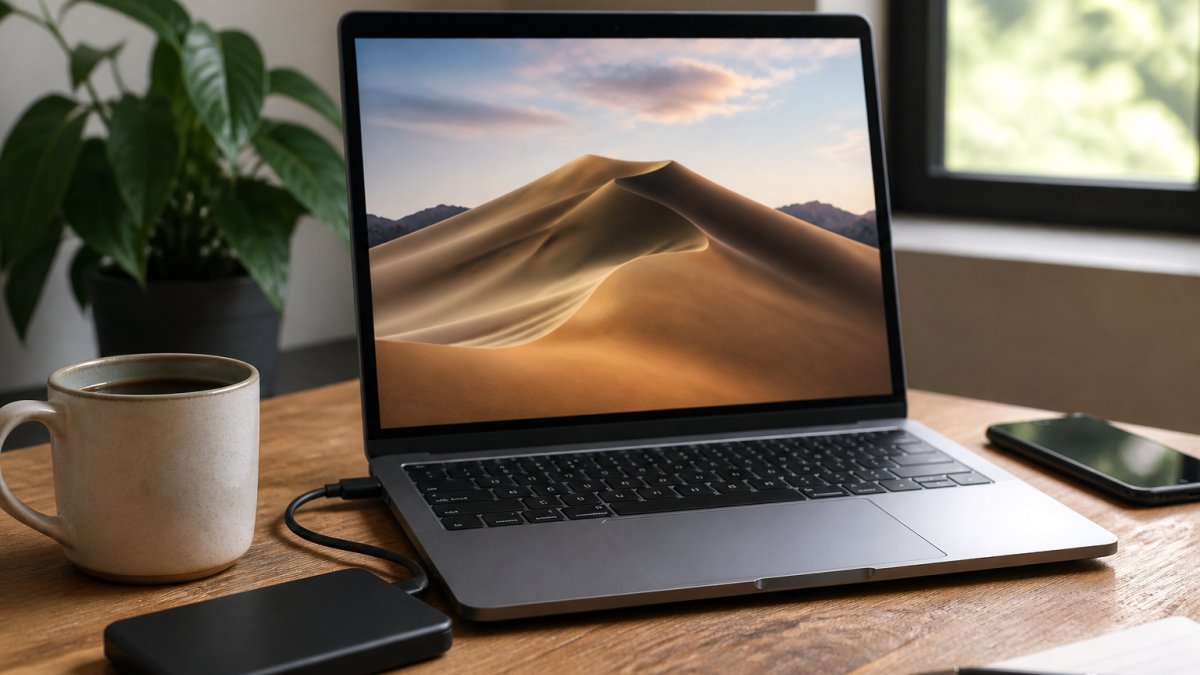
Secure media conversion tools mac keep your files local rather than uploading them to cloud servers, processing everything on your device. This distinction matters because file uploads create privacy risks that many users overlook. When you use a web-based converter, your video or audio file travels to a third-party server, where it sits temporarily while conversion happens.
According to Intego's Mac security guidance, some file-converter sites may steal sensitive information or infect your computer with malware. The risk isn't theoretical. If your media contains proprietary content, client footage, or personal recordings, uploading to an unknown server introduces unnecessary exposure.
The best secure media conversion tools mac come in two forms: desktop applications that run locally, and browser-based tools that process files in your browser without uploading. Both keep your files on your device. The key difference is transparency. A trustworthy converter should let you verify where processing happens.
Free Video Converter for Mac: What You Actually Get
Free video converters for Mac range from genuinely useful to deliberately crippled. The difference lies in what the developer prioritizes. A free video converter for Mac built by a mission-driven team offers real functionality without artificial limits. Others impose file-size caps, watermarks, or slow conversion speeds to push you toward paid upgrades.
The best free converters share common traits: no account signup required, no time limits on the free tier, and no arbitrary restrictions on output formats. HandBrake exemplifies this approach. It's open-source, free forever, and handles video transcoding without limitations. You get presets for common output formats, batch conversion, and quality settings that rival paid tools. The tradeoff is a steeper learning curve.
Free tiers on paid tools often feel like demos. They cap file size at 50MB or 100MB, limit you to one conversion per day, or restrict output formats to the most basic options. These aren't free converters, they're trial versions designed to frustrate you into upgrading.
Offline Media Converter for Mac: Processing Without Uploads
An offline media converter for Mac keeps every file on your device. No uploads. No cloud processing. No reliance on someone else's servers. This matters for sensitive content: client work, personal videos, proprietary audio, anything you don't want leaving your Mac.
Desktop applications like HandBrake and Permute run entirely offline. You install them, open a file, configure settings, and convert. Everything happens locally. Your Mac handles the processing power. If your internet drops mid-conversion, it doesn't matter, the tool keeps working.
Browser-based converters can also be offline-capable if they process files in your browser using JavaScript or WebAssembly. This approach combines the convenience of a web tool with the privacy of desktop software.
The practical advantage of offline conversion is speed and reliability. Local processing skips network latency. A 500MB video file converts faster on your Mac than it would uploading to a cloud service, waiting in a queue, and downloading the result.
Mac Video Converter Privacy: How to Verify Claims
Privacy claims are easy to make and hard to verify. A tool might promise "no data retention" or "local processing," but how do you actually confirm it's true?
Start with documentation. Trustworthy tools publish clear privacy policies explaining what happens to your files. They state whether files are uploaded, how long they're retained, and what happens after conversion completes.
For browser-based converters, check the network tab in your Mac's browser developer tools. Open the converter, upload a test file, and watch the network requests. If processing happens locally in your browser, you won't see file uploads, only requests for the converter's code.
Open-source tools offer another layer of verification. HandBrake's source code is publicly available on GitHub (GitHub - HandBrake/HandBrake: HandBrake's development repository). Anyone can review it to confirm it doesn't phone home or retain data.
Ask the tool's creators directly. Reach out and ask whether files are uploaded or processed locally. A responsive team that answers clearly is more trustworthy than silence.
Video Converter File Format Support: What Matters
File format support determines whether a converter is useful for your specific workflow. A tool that handles MP4 and H.264 video is useful for most people.
Common video formats include MP4, MOV, AVI, WMV, FLV, and WebM. Most converters handle these. Audio formats include MP3, AAC, WAV, FLAC, and OGG. Again, most tools cover the basics.
The real question is whether the converter handles formats specific to your work. If you shoot on a professional camera that records in ProRes or DNxHD, you need a converter that supports those formats.
Check the tool's format list before committing. A converter that supports 50 formats is more flexible than one supporting 10. Batch conversion matters too, the ability to convert multiple files at once saves time if you're processing dozens of videos.
Resolution and codec support also matter. Can the converter output 4K video, or does it max out at 1080p? Does it support modern codecs like H.265 (HEVC), or only older H.264?
Secure Media Conversion Tools Compared
The following tools represent different approaches to secure media conversion. Each makes different tradeoffs between ease of use, features, and privacy.
Inkwell Tools: Privacy-First Browser Processing
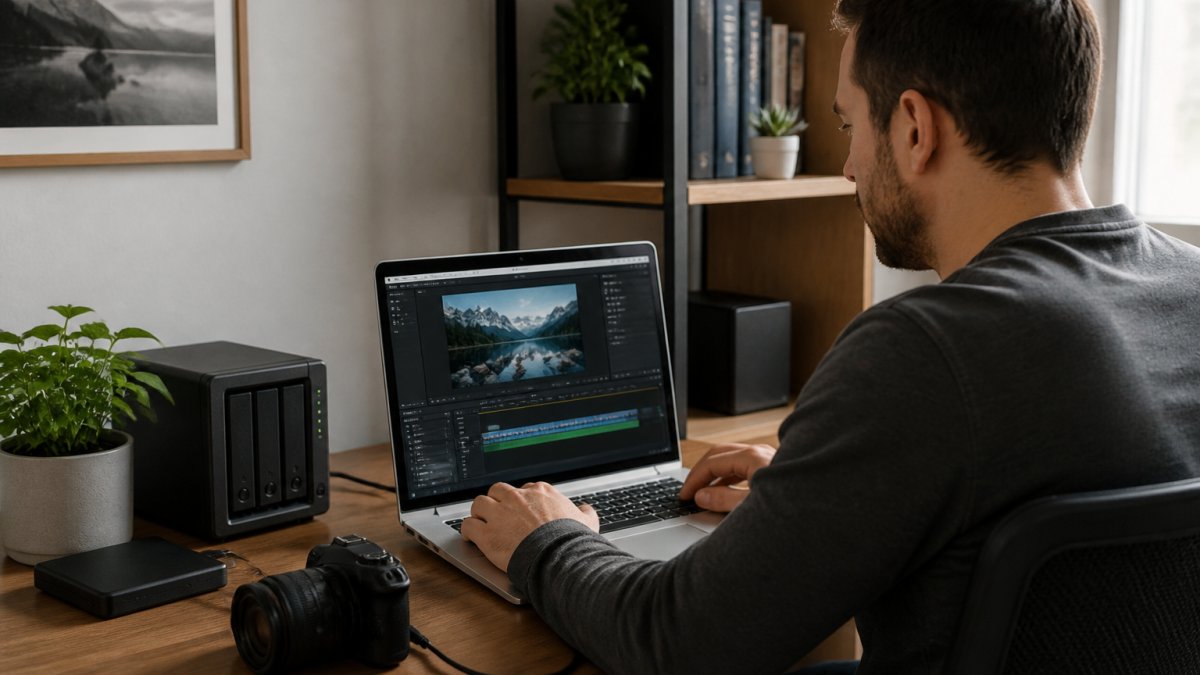
Inkwell Tools processes media conversion in your browser without uploading files to servers. This is the core distinction. Your Mac runs the conversion. Files stay on your device. The tool includes batch conversion and format flexibility, and offers a real free tier with no artificial limits or trial timers.
The interface is straightforward. Drag files in, select output format, click convert. No account required for the free tier. If you need advanced features, additional format support, or integration with other Inkwell Tools, paid tiers unlock those without restricting the free version.
Because Inkwell Tools operates on a mission-driven model, it contributes revenue to scholarships for BIPOC students. If supporting ethical business practices matters to you, this tool aligns with that priority.
Pros:
- Files process in your browser; no uploads to external servers
- Real free tier with no time limits or artificial restrictions
- Batch conversion included
- No account creation required for basic use
- Transparent privacy practices and responsive support
Cons:
- Browser-based processing requires a modern browser
HandBrake: Free and Open-Source
HandBrake is a free, open-source video transcoder available for Mac (HandBrake: Downloads). It's been the standard for video conversion among professionals and enthusiasts for over a decade. The source code is public on GitHub, so you can verify exactly what it does.
The learning curve is steeper than drag-and-drop converters. HandBrake exposes codec settings, bitrate controls, and quality parameters. If you understand video encoding, this flexibility is powerful. If you don't, the interface feels overwhelming. Presets help, HandBrake includes presets for common devices and formats, but customization requires learning.
Conversion speed is fast because everything happens locally on your Mac. HandBrake doesn't upload files anywhere. Batch conversion is supported, making it efficient for processing multiple files.
Pros:
- Completely free and open-source
- Fast local processing with no uploads
- Extensive codec and quality options for advanced users
- Batch conversion supported
- No account or subscription required
Cons:
- Steeper learning curve than consumer-focused tools
- Interface feels dated compared to modern Mac apps
- Requires understanding of video codecs to optimize quality
Smart Converter: Mac App Store Integration
Smart Converter is available through the Mac App Store, which means it integrates with Mac's native app ecosystem. The tool uses Smart Conversion technology and supports hundreds of formats. Mac App Store distribution means automatic updates and straightforward installation.
If you're comfortable with Mac App Store standards for privacy and security, this tool fits that ecosystem.
Pros:
- Available through Mac App Store for easy installation
- Supports hundreds of formats
- Integrated with Mac's native app environment
Cons:
- Privacy and security practices not clearly documented
- Limited information about whether files are uploaded or processed locally
- Pricing not shown in available results
Permute: Multi-Format Drag-and-Drop Conversion
Permute handles video, audio, and image conversion through a drag-and-drop workflow. The interface prioritizes simplicity. You drag files in, select output format, and convert. No complex settings or codec menus.
The tool is designed for users who want straightforward conversion without learning video encoding. It handles the technical details behind the scenes. Batch conversion is supported, so you can process multiple files at once.
Pros:
- Drag-and-drop simplicity
- Handles video, audio, and images
- Batch conversion included
- Fast local processing
Cons:
- Privacy and security practices not clearly documented
- Pricing not shown in available results
Wondershare UniConverter: Subscription-Based Option
Wondershare UniConverter is a subscription-based converter available for Mac. The tool is included in Mac video-converter roundups, indicating it's a recognized option in the market.
Subscription pricing means ongoing costs, but it also means ongoing updates and support. If you convert media frequently, a subscription model might make sense compared to one-time purchases.
Pros:
- Annual subscription pricing is clear and predictable
- Included in professional Mac converter roundups
- Subscription model ensures ongoing updates
Cons:
- Privacy and security practices not clearly documented
- Limited information about whether files are uploaded or processed locally
- Requires subscription commitment rather than one-time purchase
Which Tool Should You Choose
Your choice depends on three factors: privacy requirements, technical comfort, and workflow complexity.
If privacy is your top priority and you want to avoid any file uploads, choose Inkwell Tools or HandBrake. Both process files locally. Inkwell Tools is simpler to learn; HandBrake offers more advanced control.
If you prefer a native Mac app without browser dependency, HandBrake or Permute work well. HandBrake is free; Permute costs money but offers a simpler interface.
If you want the easiest possible experience and don't need extensive format support, Smart Converter or Permute fit that need.
If you're already comfortable with video encoding and want maximum flexibility, HandBrake is the professional choice. It's free, powerful, and widely trusted.
If you convert media regularly and want ongoing support with a subscription model, Wondershare UniConverter provides that structure.
Choosing a secure media converter for Mac comes down to matching the tool to your actual workflow. If your files contain sensitive content, prioritize tools that keep files local and document their privacy practices clearly.
Frequently Asked Questions
Is a free online video converter safe to use for sensitive files?
Free online converters carry real risks. Many upload your files to remote servers, where they may be stored, logged, or shared. Intego warns that some file-converter sites steal sensitive information or infect computers with malware. For sensitive files, use offline converters that process media on your Mac without uploading, or choose tools with verifiable privacy policies and no-upload guarantees. Always check the tool's privacy statement before converting confidential content.
What should I check before downloading a Mac video converter?
Before downloading, verify: (1) whether the tool processes files locally on your Mac or uploads them to servers, (2) the privacy policy and data retention practices, (3) macOS and Apple silicon compatibility, (4) the supported input and output formats for your workflow, (5) whether it's distributed through the Mac App Store (which provides some security vetting), and (6) user reviews that mention security or performance. Open-source tools like HandBrake allow you to inspect the code, adding transparency.
Can I convert media files on a Mac without uploading them?
Yes. Desktop applications and browser-based tools that process files locally keep your data on your Mac. Tools like HandBrake, Permute, and Smart Converter run as native Mac applications. Browser-based converters that use in-browser processing (like Inkwell Tools) also avoid uploading, though you should confirm the privacy policy. Avoid web-based converters that don't explicitly state local processing, as they typically upload files to remote servers for conversion.
What video and audio formats should a secure media converter support?
Essential formats include MP4, AVI, WMV, FLV, and WEBM for video; MP3, AAC, and WAV for audio. The specific formats you need depend on your workflow. Check the tool's format list against your current file types and intended outputs. Open-source tools like HandBrake support a broad range of codecs. If you work with specialized formats (like ProRes or DNxHR), verify support before committing to a tool, as not all converters handle professional codecs equally.
Which media converter is safest for Mac?
The safest converters combine three factors: local processing (no server uploads), transparent privacy practices, and regular security updates. HandBrake scores well on transparency (open-source code you can audit) and offline processing. Tools like Inkwell Tools that process files in your browser and state no data retention offer privacy-first design. Always prioritize converters with clear privacy policies, regular updates, and, if handling sensitive files, those distributed through official channels like the Mac App Store or verified developer websites.