 listicle
Top 5 Secure Web Utilities for Personal Use
Table of Contents
- What Are Secure Web Utilities and Why They Matter
- Quick Comparison Table
- 1. Inkwell Tools: Privacy-First Document Management and File Handling
- 2. Brave: Private Web Browsing with Tracking Protection
- 3. Bitwarden: Secure Password Management for Personal Use
- Secure PDF Tools and Online Document Management Tools
- 4. DuckDuckGo: Private Search Without Tracking
- 5. Firefox: Open-Source Browser with Privacy Controls
- Frequently Asked Questions
Last Updated: October 12, 2026
What Are Secure Web Utilities and Why They Matter
Secure web utilities protect your personal data, privacy, and files while you work online. At Inkwell Tools, we focus on sensitive tasks, document management and encrypted file handling, without compromising speed or ease of use.
The difference between a secure web utility and a standard tool comes down to where your data lives.
Digital privacy isn't optional. Personal documents, financial records, and login credentials are targets, and one compromised password manager or unencrypted upload can expose years of sensitive information.
Below are some top secure web utilities for personal use, each chosen for in-browser processing, genuine free tiers without trial timers, and transparent privacy practices.
Quick Comparison Table
| Utility | Key Strength | Best For | Free Tier |
|---|---|---|---|
| Inkwell Tools | Browser-based document handling with no data servers | Privacy-first document work | Full-featured free tier |
| Brave | Fingerprint tracking protection built into browser | Daily browsing with ad blocking | Free, always |
| Bitwarden | Open-source password management | Secure credential storage | Full free tier for personal use |
| DuckDuckGo | Private search without tracking | Replacing Google Search | Free, always |
| Firefox | Open-source browser with privacy controls | Customizable privacy settings | Free, always |
1. Inkwell Tools: Privacy-First Document Management and File Handling
Inkwell Tools handles sensitive documents without sending them to external servers. Every file, PDFs, images, spreadsheets, stays in your browser, with editing, conversion, and analysis happening locally.
This eliminates the most common privacy risk: data transmission. Your files never leave your device, so there's no server to trust.
The free tier is genuine: no contact-capture forms, no "upgrade after 14 days," no artificial limits. You get the full document management and conversion suite.
Browser-Based File Tools and In-Browser Processing
Browser-based processing means Inkwell Tools doesn't need your files on its servers. Your browser handles the heavy lifting, PDF rendering, image resizing, format conversion, unlike cloud-based tools that upload and process remotely.
The benefit is speed and privacy combined: no upload wait, no download step, no server logs. For client contracts, tax documents, and medical records, this matters.
Inkwell Tools uses this approach across its suite of document management and media conversion tools, which all process locally. Coming from Google Drive or Dropbox, expect a different workflow, those services assume cloud storage and sharing, while Inkwell puts privacy first.
Real Free Tier with No Trial Timers
The free tier isn't a demo, it's the actual product, with full access to core utilities, PDF tools, image compression, and document organization.
Trial-based pricing creates artificial urgency. Inkwell removes that pressure: use the free tier as long as you need, and upgrade when paid features add real value.
2. Brave: Private Web Browsing with Tracking Protection
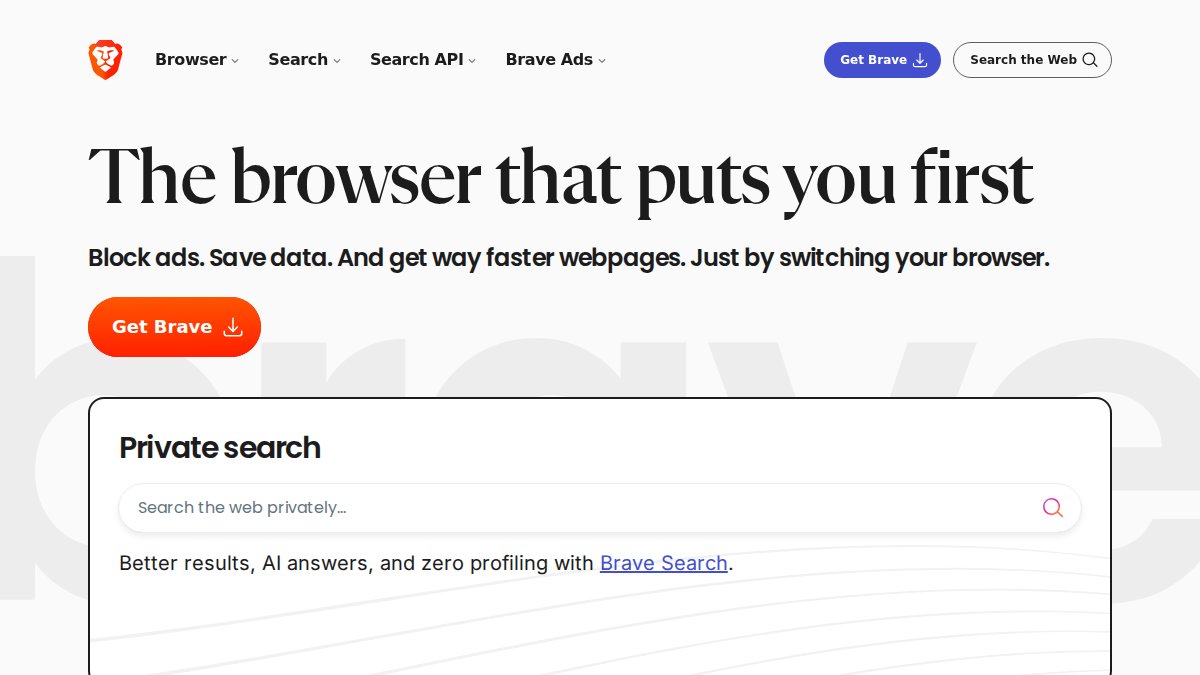
Brave is a browser built specifically to stop tracking. It blocks fingerprinting, the technique websites use to identify you across the internet even when you delete cookies.
Most browsers offer privacy modes that delete your history. Brave goes further: it prevents websites from building a profile of you at all.
The free tier is the entire product, there's no paid version for individuals. Download it and you get full tracking protection immediately, with privacy built in rather than bolted on.
Where Brave stands out: ad blocking is included. Brave blocks ads and trackers by default, which also speeds up page loads noticeably if you're switching from Chrome or Firefox.
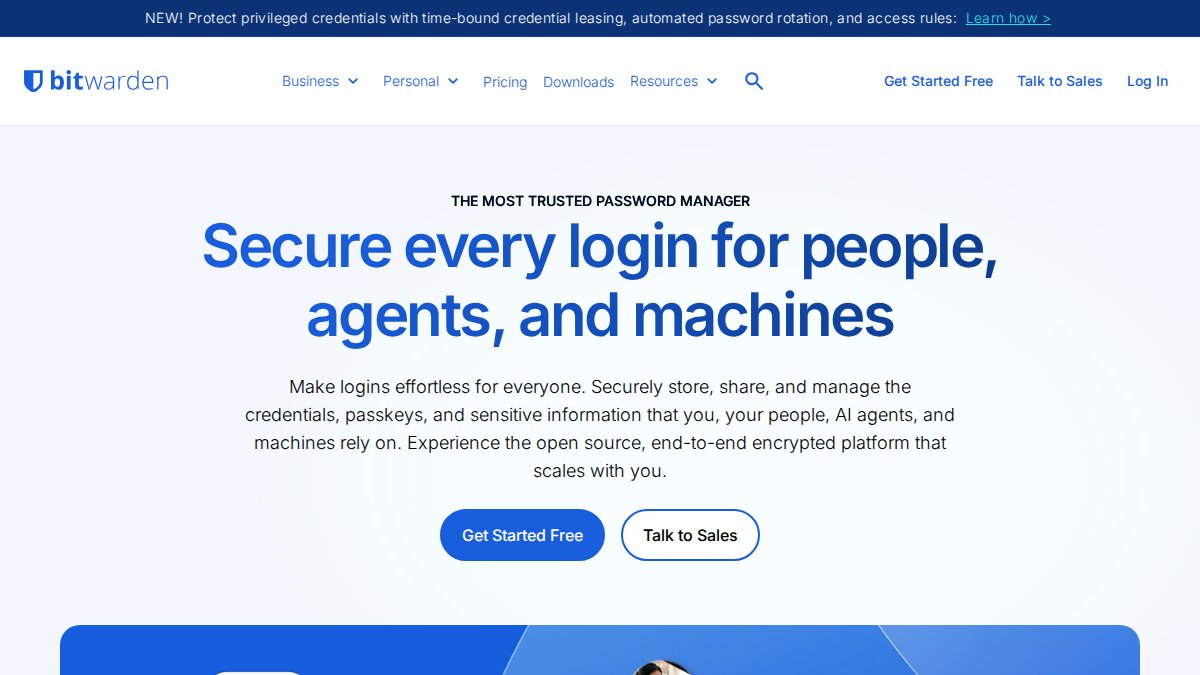
3. Bitwarden: Secure Password Management for Personal Use
Bitwarden is open-source password management: the code is public, anyone can audit it, and researchers can verify how it works rather than taking the company's word (Bitwarden).
The free tier includes everything most people need: unlimited password storage, password generation, and sync across devices, with the same encryption as the paid tier. Paid adds emergency access and priority support.
Open-source tools have a trust advantage: if Bitwarden ever shut down or was acquired, the code would remain available. You could export your passwords and move to another open-source manager.
Setup takes minutes: create a master password and Bitwarden syncs credentials across your devices, while the browser extension auto-fills login fields.
Secure PDF Tools and Online Document Management Tools
Secure PDF tools and online document management tools are where personal-use readers get burned most often, because PDFs, tax returns, medical records, signed contracts, scanned IDs, are uploaded without thinking. The question separating a safe tool from a risky one is where the bytes are processed: in your browser's memory, or on a company's server.
What to Look for in Secure PDF Tools
When you evaluate a PDF tool for personal use, run it through five checks before you upload anything sensitive.
**1.
2. Registration requirements. Some tools gate basic actions, filling a form, splitting a PDF, converting to an image, behind an account, creating a record tying your identity to the file.
**3.
4. Encryption in transit and at rest. If a tool uploads, it should use HTTPS/TLS for transit and encrypt stored files at rest. No clear statement about encryption is a red flag.
**5.
Online Document Management Tools for Privacy-Conscious Users
Document management tools handle storage, organization, and sharing, a different risk profile from a one-shot PDF converter.
Client-side processing tools. Inkwell Tools is built around this model: open a document, edit or convert it in your browser, and download the result.
Encrypted cloud storage. Services such as Proton Drive and Tresorit encrypt files on your device before they reach the provider's servers, so the provider can't read the contents.
Password-protected PDFs. Standard PDF password protection encrypts file contents, but strength depends on the tool's encryption method, and older tools may use weak or deprecated ciphers.
A Practical Safe-Use Checklist
- Redact before you upload, not after. If a document contains a Social Security number, account number, or medical identifier that the task does not require, remove it locally first.
- Prefer client-side tools for anything you would not email to a stranger.
- Never upload a document to a tool that requires an account you did not intend to create.
- Check the retention policy before uploading, not after.
- For recurring sensitive work, use a locally installed application rather than a web tool.
- Keep your browser and extensions updated; a compromised extension defeats every other precaution on this list.
4. DuckDuckGo: Private Search Without Tracking
DuckDuckGo is a search engine built on one premise: your searches shouldn't be used to build a profile of you. Google Search logs queries, ties them to your account and device signals, and uses that history to target ads and personalize results. DuckDuckGo does none of that.
How the Privacy Actually Works
DuckDuckGo doesn't store search history, create a user profile, or use past searches to influence results (DuckDuckGo Privacy Policy). It blocks known trackers on the search results page and, in its mobile apps, across sites you visit from the app, and its privacy policy states it doesn't collect or share personal information.
One mechanism worth understanding: DuckDuckGo doesn't run its own full web index. It sources results from partners, historically including Bing, and layers its own ranking and instant answers on top, so the underlying result set isn't entirely independent of other search engines even though the tracking layer is.
The Business Model Trade-Off
DuckDuckGo makes money from contextual advertising, ads based on the keywords you typed, not a profile of you, and affiliate partnerships, a meaningfully different model from ad networks that track you across sites. Contextual ads are less lucrative, part of why the company hasn't built the same infrastructure scale as the largest search engines.
What It Does Not Protect Against
Be clear about the limits. DuckDuckGo protects your search activity from being profiled by the search engine. It does not:
- Hide your searches from your ISP, which still sees the domains you connect to unless you use a VPN or encrypted DNS.
- Hide your searches from your employer on a managed network.
- Prevent sites you click through to from tracking you once you arrive, for that, use a browser with tracking protection, such as Brave or Firefox with strict protection enabled.
- Protect you if you're signed into a Google account in the same browser and then visit Google properties.
How to Set It Up
- Visit the DuckDuckGo homepage and confirm the search bar works.
- Add DuckDuckGo as a search engine and set it as default. In Chrome: Settings > Search engine > Manage search engines. In Firefox: Settings > Search > Default Search Engine.
- Install the browser extension or mobile app for tracker blocking on the sites you visit, not just the search page.
- Optionally enable email protection, which generates a forwarding alias instead of your real address.
Cost and Limitations
DuckDuckGo is free with no paid tier, trial, premium version, or account required. Its limitations are above: it's a search-layer privacy tool, not a full browsing one, and it depends on partner indexes. Used alongside a privacy-respecting browser and, for network-level protection, a reputable VPN, it covers the search portion of your footprint well.
5. Firefox: Open-Source Browser with Privacy Controls
Firefox is an open-source browser maintained by Mozilla, a nonprofit.
Firefox includes tracking protection by default, blocking known trackers and fingerprinting scripts.
Privacy controls are granular: manage cookies by site, disable JavaScript for specific domains, and control what data Firefox sends to Mozilla.
Firefox is free and always will be. Mozilla funds development through search partnerships and donations, not by selling user data, and security patches ship quickly.
Setup is instant: download, install, and browse privately. Switching from Chrome imports bookmarks and passwords automatically, and the familiar interface means no learning curve.
Choosing the right secure web utility depends on what you're protecting: documents, passwords, search history, or browsing activity.
Frequently Asked Questions
What is a secure web gateway, and how does it differ from secure web utilities for personal use?
A secure web gateway is typically an enterprise-level tool that filters and monitors all web traffic for an organization. Secure web utilities for personal use are lighter-weight tools you install on your own devices, like private browsers, password managers, and document management tools, to protect your individual data and browsing activity. Personal utilities focus on privacy and ease of use rather than organization-wide access control.
Are browser-based file tools really private, or is my data still being sent to servers?
True browser-based file tools process your data in your browser using JavaScript, meaning files never leave your device unless you explicitly upload or share them. Look for tools that clearly state core editing happens in-browser. Check their privacy policy and, if available, third-party security audits. Trustworthy vendors are transparent about where processing occurs and offer documentation to verify their claims.
How can I tell whether a web utility is safe to use?
Check for these signals: open-source code (allows independent review), a clear privacy policy explaining data handling, real user reviews from trusted sources, and transparent security practices. Avoid tools with vague privacy language, mandatory account creation for basic features, or aggressive trial timers. If the vendor offers a genuine free tier with no artificial restrictions, that's a positive sign they're confident in their product.
What should I look for in a secure PDF tool?
Prioritize tools that allow you to edit without uploading to external servers. Check whether the tool processes files in your browser or sends them to cloud servers. Verify the vendor's privacy policy and whether they retain or delete your files after processing.
Do I need to pay for secure web utilities, or are free options sufficient?
Many strong secure web utilities offer genuine free tiers, Bitwarden, Brave, and Firefox are free for personal use. Paid tiers usually add features like advanced storage, priority support, or team collaboration. Start with free options to test whether they solve your problem. Upgrade only when you need specific premium features. Avoid tools with fake free tiers that expire or severely limit functionality.